• Skip navigation
  • Skip to navigation
  • Skip to the bottom
Simulate organization breadcrumb open Simulate organization breadcrumb close
FAUbox
  • FAUTo the central FAU website
Suche öffnen
  • Deutsch
  • Campo
  • StudOn
  • FAUdir
  • Jobs
  • Map
  • Help

FAUbox

Navigation Navigation close
  • FAUbox Documentation
    • Glossary
    • FAUbox Account Lifecycle
    • FAUbox Features
    • Desktop Client Guide
      • Installing on Windows
      • Installing on macOS
      • Installing on Linux
      • Users Guide
      • Troubleshooting
    • Cloud Guide
      • Getting started
      • Users guide
    • FAUbox Mobile Apps
      • Working with the FAUbox on an Android device
      • Working with the FAUbox on an iOS device
    • Known issues
    • FAUbox-Extensions
      • Storage capacity expansion
      • Setting up a ‘Function’ FAUbox
      • FAUbox Add-Ons
    • Projects with external partners
    • Support for congresses
    • Security and Privacy
    • PowerFolder Outlook Add-In Guide
    Portal FAUbox Documentation
  • How-to articles
  • FAQs
  • FAUbox Hotline
  • FAUbox
  1. Home
  2. Desktop Client Guide
  3. Users Guide
  4. Moving the Folder Basepath of the FAUbox Client
  5. Moving the Folder Basepath of the FAUbox Client on Linux

Moving the Folder Basepath of the FAUbox Client on Linux

In page navigation: Desktop Client Guide
  • Client Log Files
  • Installation Guide
  • Troubleshooting
  • Users Guide
    • A quick glance over the desktop client
    • Accepting/ Declining a Folder Invitation
    • Accessing FAUbox folders via WebDAV
    • Configuring Client Settings
    • Configuring the Folder Basepath
    • Creating a top-level Folder via Client
    • Deleting a Toplevel Folder via Client
    • Editing Folders and Files via the File System
    • Excluding Files or Directories
    • Getting started
    • Managing folder members
    • Moving the Folder Basepath of the FAUbox Client
      • Moving the Folder Basepath of the FAUbox Client on Linux
      • Moving the Folder Basepath of the FAUbox Client on macOS
      • Moving the Folder Basepath of the FAUbox Client on Windows
    • Reading the Synchronization Status via File System
    • Restoring File Versions
    • Running as a Windows System Service
    • Secure Files with End-to-End Encryption (E2EE) using Cryptomator
    • Sharing Folders and Files via Client
    • Stopping the Folder Synchronization
    • Synchronizing a shared folder
    • Using command line parameters

Moving the Folder Basepath of the FAUbox Client on Linux


Please note!
Moving the basic folder
path to a network drive, a usb stick or a extern disk is not recommended! There is a risk of data loss!

Before you start you should keep some things in mind.

  • A change of the folders base path in the FAUbox client settings will affect new folder, only. Existing folders will not touched.
  • The offered workflow for movement of existing folder will only work on very small folders in case of no synchronization will happen while the move is ongoing -> This workflow can not be recommended!
  • If you delete the config file (PowerFolder.config) the folders base path will be reset to the default (/home.local/<username>/FAUbox).
  • The best plan is to copy all data first, then change the foder base path in the local FAUbox client, then stop the local FAUbox client, delete the folders database, restart the local FAUbox client, wait until everything is synchronized and finally delete all data in the old path. While doing that no synchronization should occur. Check that all synchronization is complete before you start.
  • Best is to do it together with the FAUbox support.
  1. Copy all data from the old FAUbox base path to the new location. This location has to be local, no network drive, no usb stick, no extern disk. You risk data loss otherwise.
  2. Start the FAUbox client if it is not running.
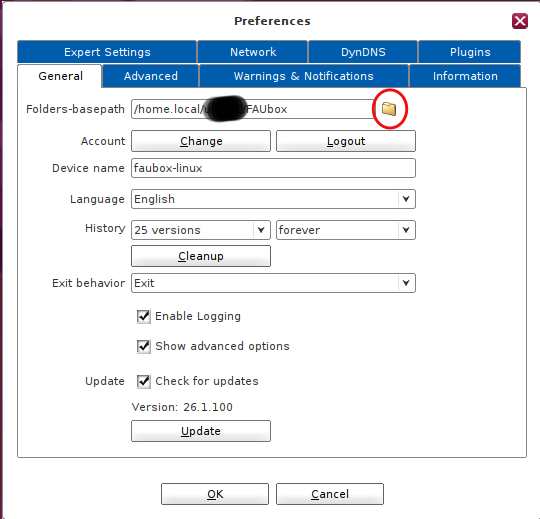
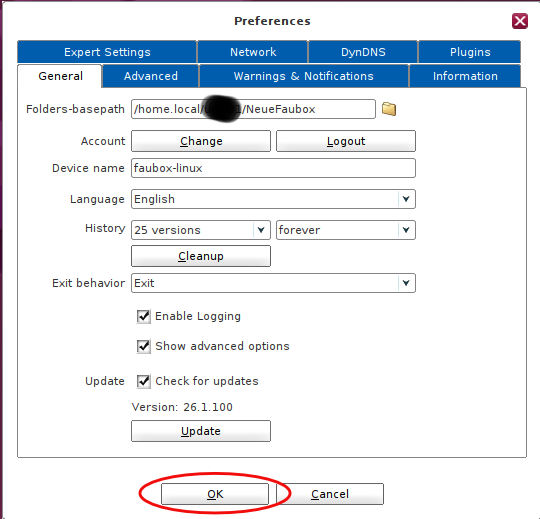
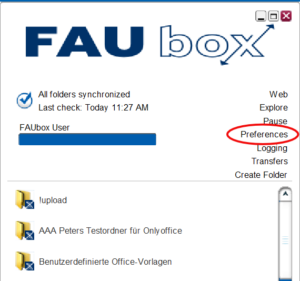
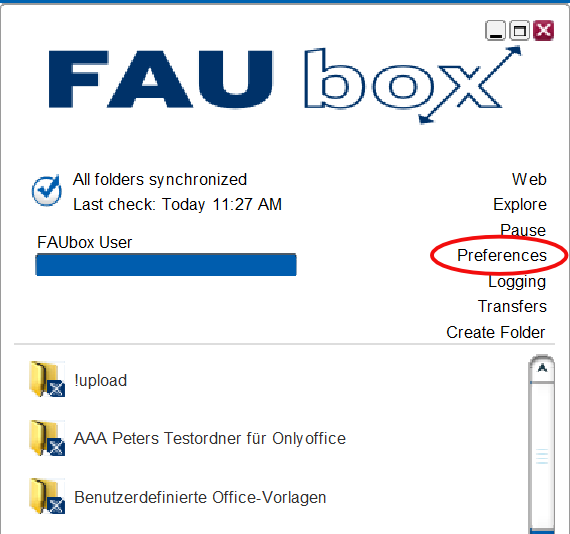
  3. Click on Preferences in the upper right corner and select General.

  4. Click on the folder icon next to folders basepath.
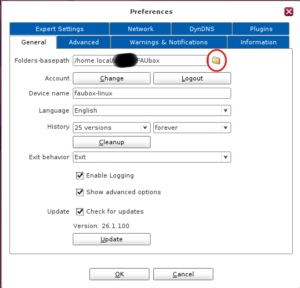
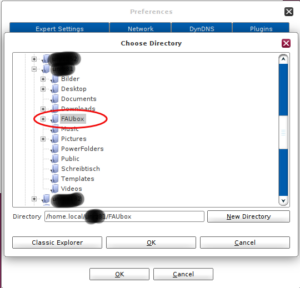
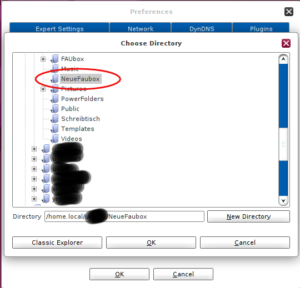
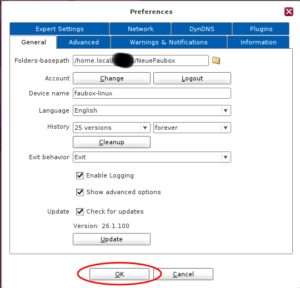
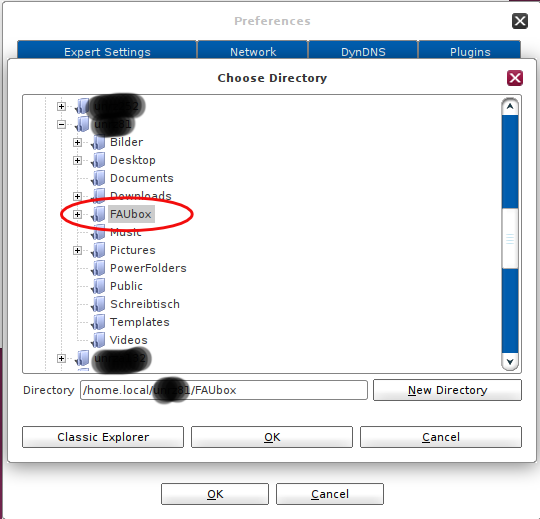
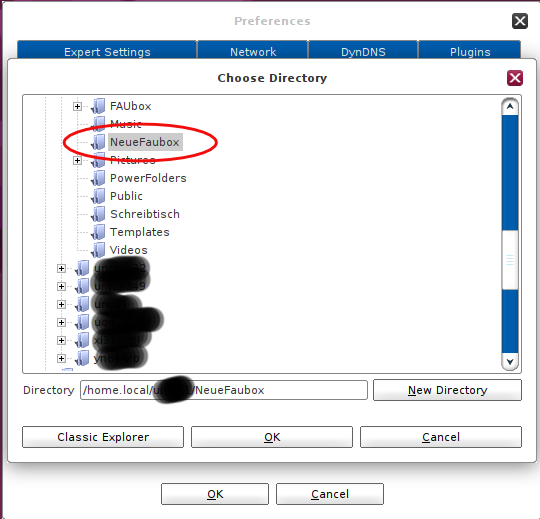
  5. A new window opens. Select the desired directory for the new FAUbox base path and confirm with OK.
    • Old path:
    • New path:

    Example:
    As seen in the picture above, the FAUbox base folder is located in the directory FAUbox. Now if you want to change the base path of the FAUbox and move it to NeueFAUbox for example, you have to change the path from /home.local/<username>/FAUBox to /home.local/<username>/NeueFAUbox

    Be careful to include the FAUbox basefolder in the path since it could lead to loss of data!


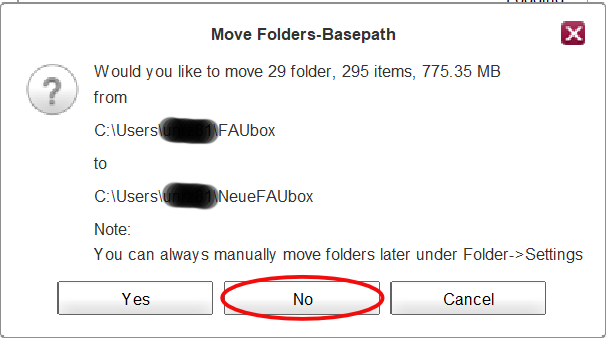
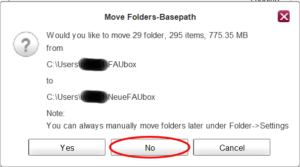
  6. Respond to the question to move the folders with “NO”.
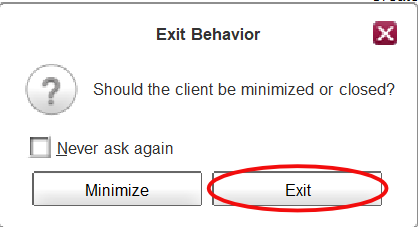
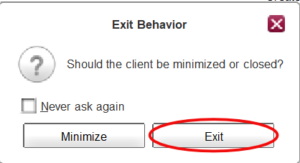
  7. Stop the local FAUbox client. Click “Exit” at the exit behavior window.
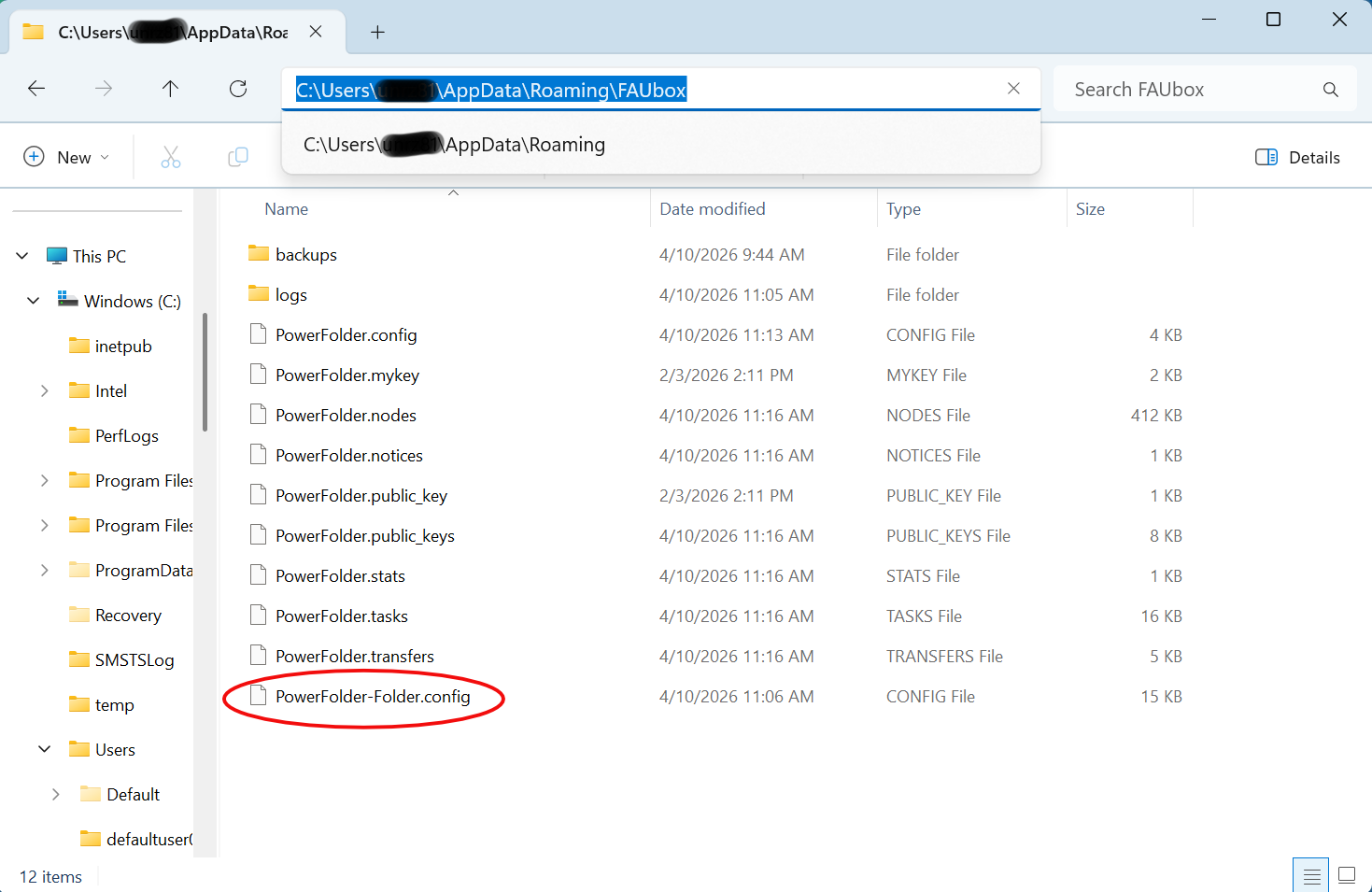
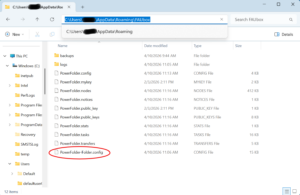
  8. Delete the file “~/.FAUbox/PowerFolder-Folder.config”.
  9. Start the local FAUbox client again.
  10. Wait until everything is synced.
  11. Done! The folder basepath of your FAUbox basefolder (including all its containing folders and files) was successfully changed. Please check all data at the new location and the folders path (see 4.) before you delete the data at the old location.
Regionales Rechenzentrum Erlangen
Martensstraße 1
91058 Erlangen
  • Imprint
  • Privacy
  • Accessibility
  • Facebook
  • RSS Feed
  • Twitter
Up