Accessing folders via WebDAV on macOS
WebDAV means Web-based Distributed Authoring and Versioning. It is a set of extensions to the HTTP protocol which allows users to collaboratively edit and manage files on remote web servers (meaning by remote access to the content of the web server). It was defined in rfc4918 and evolved to a de-facto standard.
Files (or folders) stored in the cloud can be accessed via WebDAV. Many operating systems come with built-in WebDAV support and allow to upload, access and explore files stored in the FAUbox without the client or any additional software installed. On faubox.rrze.fau.de all WebDAV traffic will be SSL-encrypted.
I. Access to the WebDAV URL
In order to get access to your FAUbox folders via WebDAV, you need a WebDAV URL. The WebDAV-URL could be either:
1. https://faubox.rrze.uni-erlangen.de/webdav/
or
2. https://faubox.rrze.uni.erlangen.de/webdav/foldername
If you want to access all of the FAUbox folders, you have to use the first URL, while the second one is useful in case you only want to get access to a single top level folder. In order to get access to the content of a single top level folder, you have to add the foldername to the first URL. Example: If the top level folder is called Apple, the URL would be: https://faubox.rrze.uni-erlangen.de/webdav/Apple
The address can be used in any WebDAV client to access the contents of a folder stored in the FAUbox.

You can only access folders created and owned by yourself or folders which you are a member of.
II. Instructions for internal users (employees and students of affiliated institutions; SSO or Single Sign-On-users)
The instruction for guests is located further below in the section called “III. Instructions for external users/guests”
To access folders via WebDAV, you will need an authentication token, aside from the WebDAV URL, which will authenticate you as the rightful user and your username which is shown in the FAUbox web client.
1. To get to the authentication token:
1. Open the web client and log in (https://faubox.rrze.uni-erlangen.de).
2. Choose “My Account” located at the uppder right side.
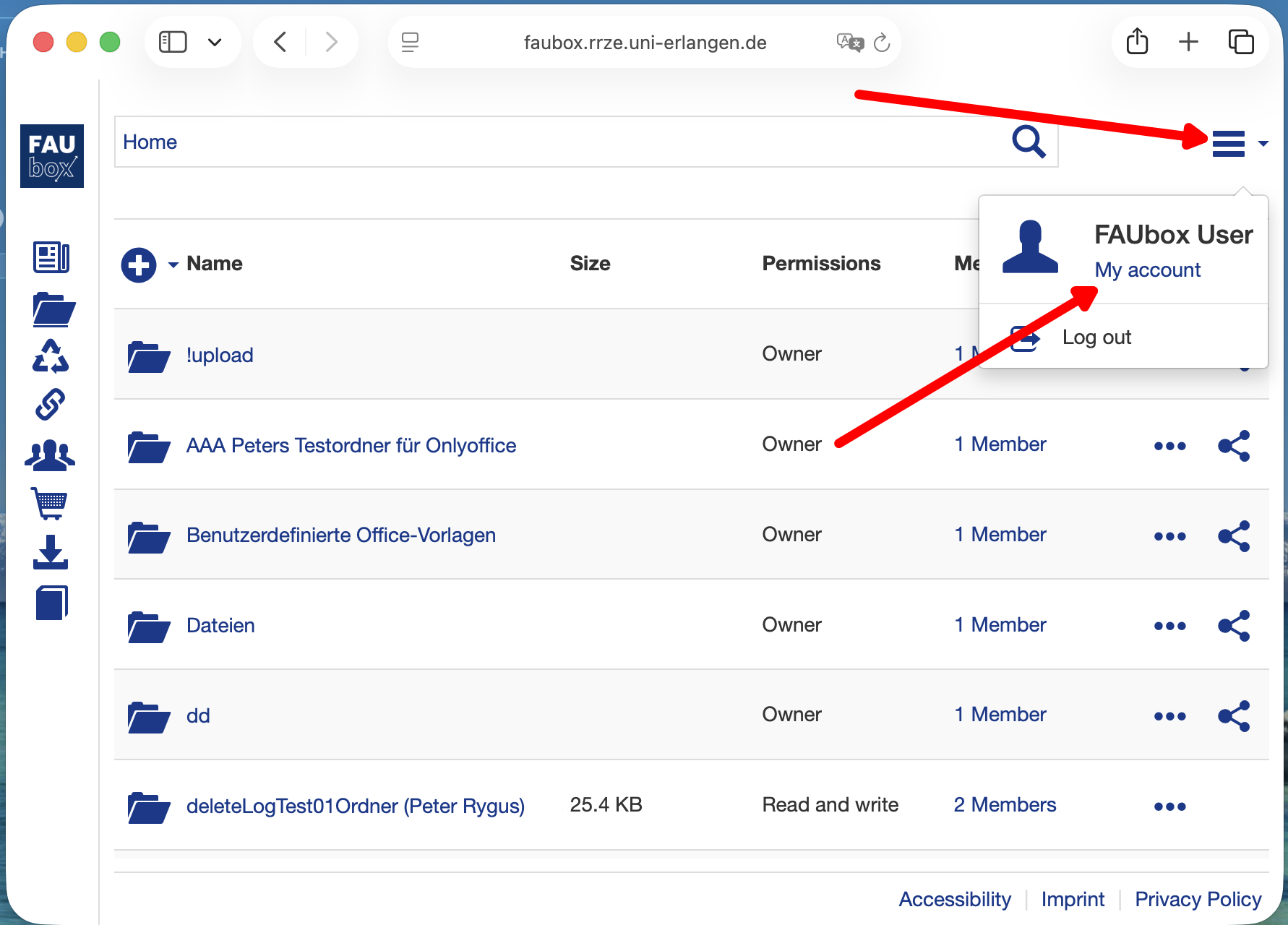
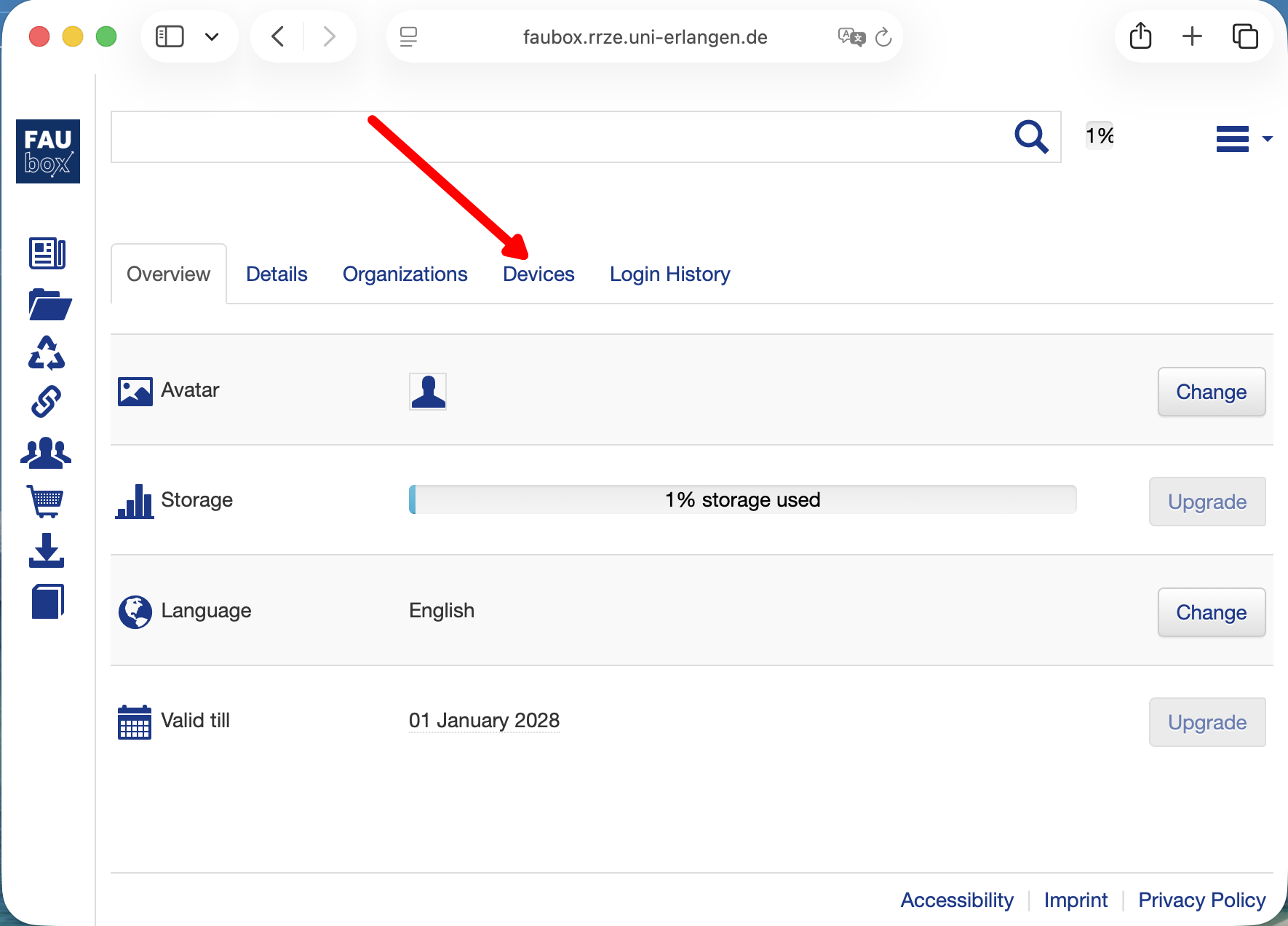
3. Choose “Devices”
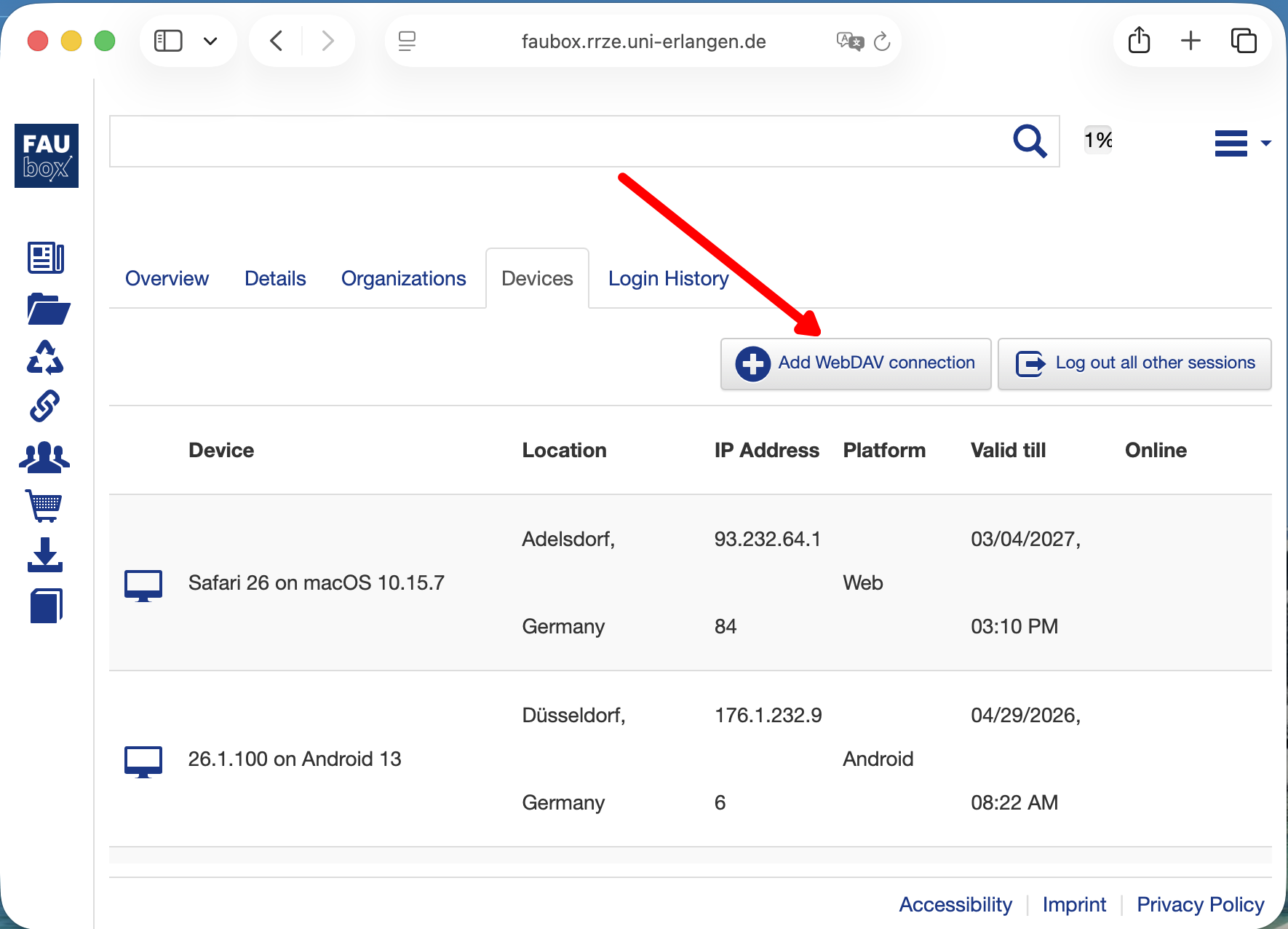
4. Choose “Add WebDAV connection”
5. Choose “Generate”
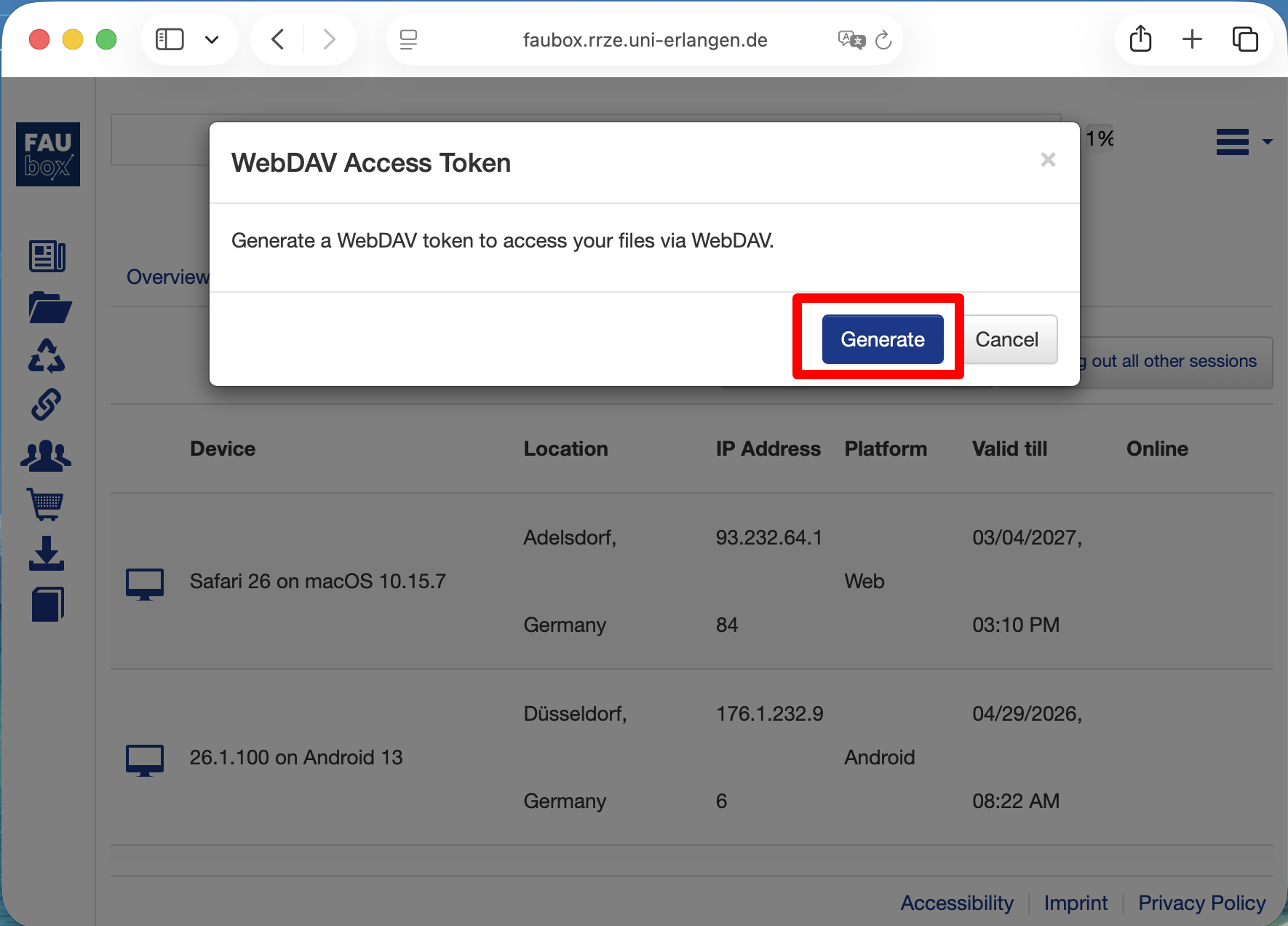
Now You can see the WebDAV URL, the FAUbox username and the WebDAV token needed for authentication to the WebDAV service. Don’t worry abouot the sometimes strange look of the username. This is delivered by your SSO identity provider.
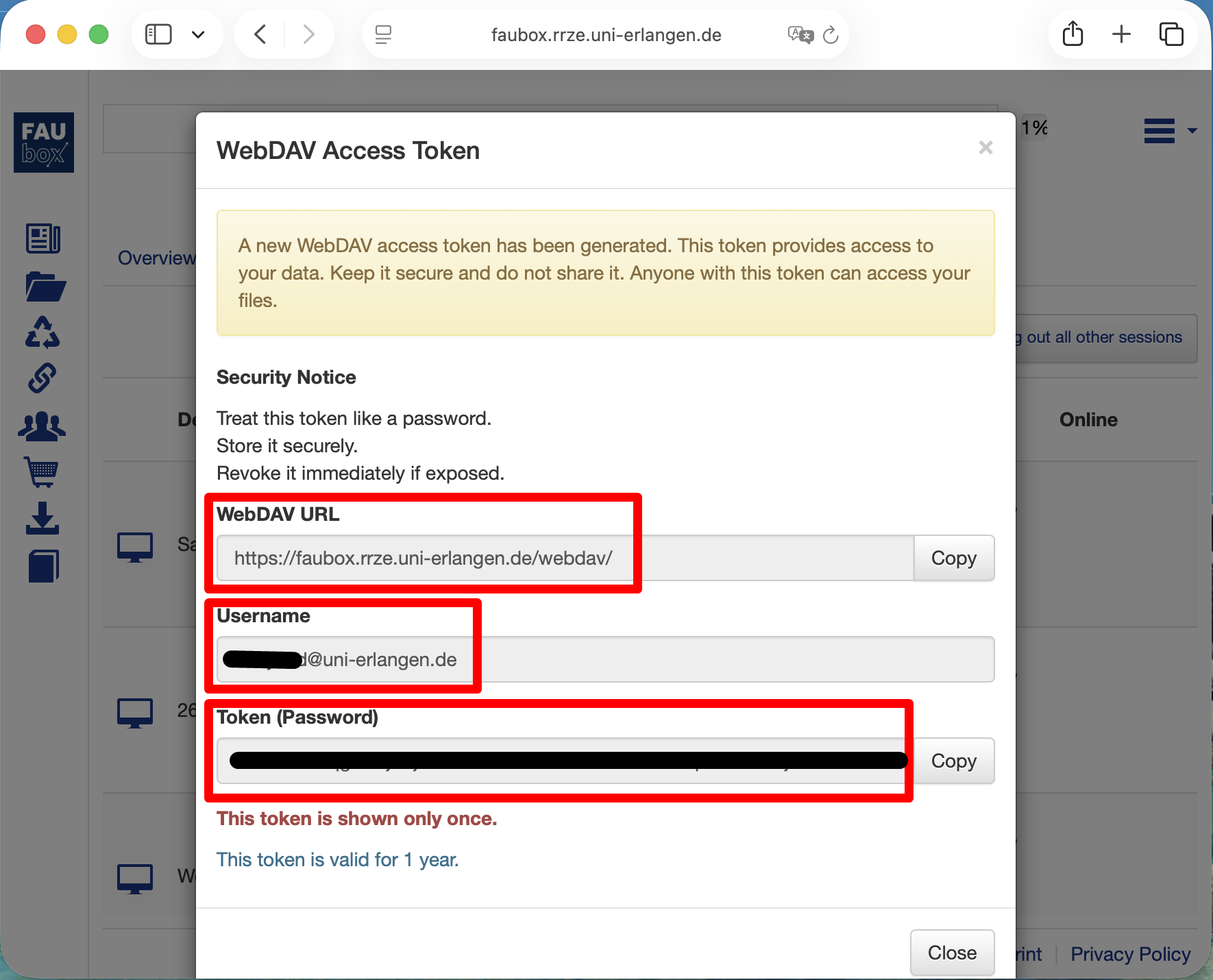
Please note! Each authentication token has an expiration date and has to be renewed afterwards. The renew procedure is the same like described above. Just create a new one and delete the old one.
2. To set up a WebDAV-connection:
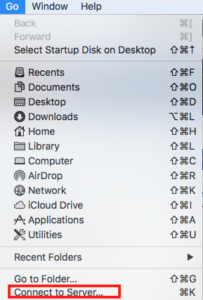
- Click on Go.
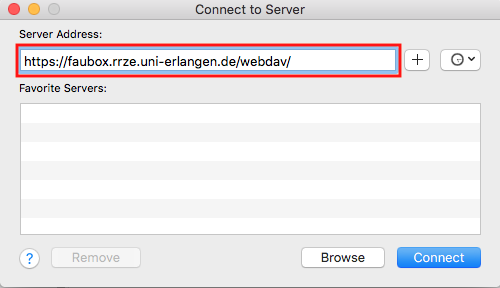
- Click on Connect to server…
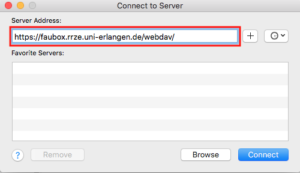
- Enter the WebDAV URL of the folder in the Server Adress field.
- Click on Connect
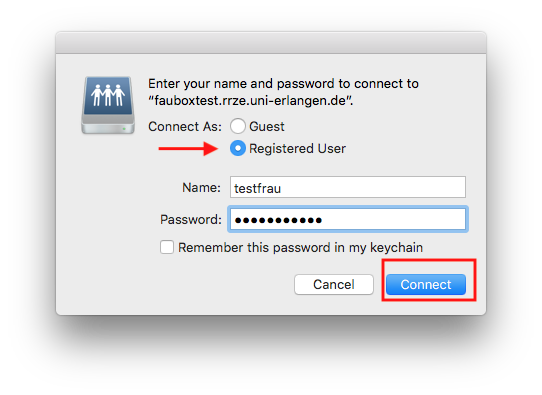
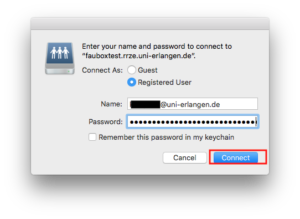
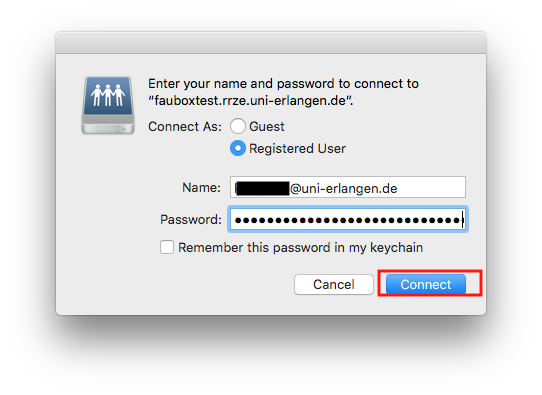
- Select Registered User, and enter your User ID (IdM user ID>@uni-erlangen.de) and authentication token in the window that opens.
- Click on Connect.
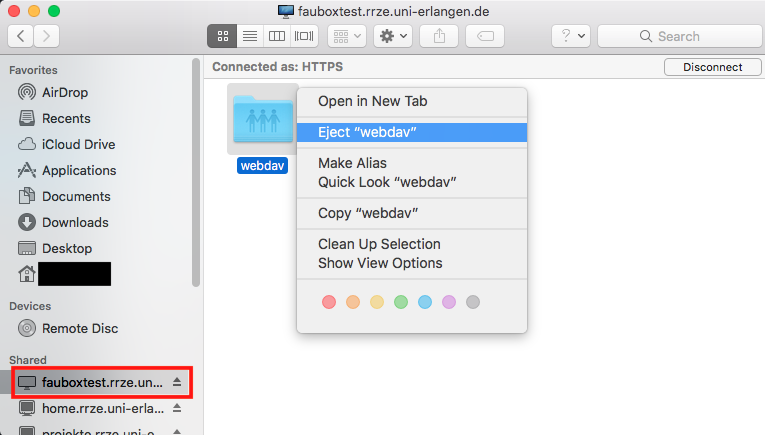
3. To disconnect the WebDAV-connection:
If you want to disconnect the network drive:
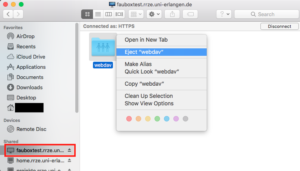
- Open the Finder
- Select the network drive in the left navigation area with a left-click.
- Right-click on Webdav and select Eject Webdav.
III. Guest guide
External people use the same procedure as SSO-users, but they do not need an authentication token. They use their FAUbox user name and password for login.